
157 lines
4.2 KiB
Markdown
157 lines
4.2 KiB
Markdown
## 快速开始 🚀
|
||
|
||
<br>
|
||
只需提供一个视频 <b>主题</b> 或 <b>关键词</b> ,就可以全自动生成视频文案、视频素材、视频字幕、视频背景音乐,然后合成一个高清的短视频。
|
||
<br>
|
||
|
||
<h4>Web界面</h4>
|
||
|
||

|
||
|
||
<h4>API界面</h4>
|
||
|
||

|
||
|
||
下载一键启动包,解压直接使用
|
||
|
||
### Windows
|
||
|
||
- 百度网盘: https://pan.baidu.com/s/1bpGjgQVE5sADZRn3A6F87w?pwd=xt16 提取码: xt16
|
||
|
||
下载后,建议先**双击执行** `update.bat` 更新到**最新代码**,然后双击 `start.bat` 启动 Web 界面
|
||
|
||
### 其他系统
|
||
|
||
还没有制作一键启动包,看下面的 **安装部署** 部分,建议使用 **docker** 部署,更加方便。
|
||
|
||
## 安装部署 📥
|
||
|
||
### 前提条件
|
||
|
||
- 尽量不要使用 **中文路径**,避免出现一些无法预料的问题
|
||
- 请确保你的 **网络** 是正常的,VPN 需要打开`全局流量`模式
|
||
|
||
#### ① 克隆代码
|
||
|
||
```shell
|
||
git clone https://github.com/harry0703/MoneyPrinterTurbo.git
|
||
```
|
||
|
||
#### ② 修改配置文件
|
||
|
||
- 将 `config.example.toml` 文件复制一份,命名为 `config.toml`
|
||
- 按照 `config.toml` 文件中的说明,配置好 `pexels_api_keys` 和 `llm_provider`,并根据 llm_provider 对应的服务商,配置相关的
|
||
API Key
|
||
|
||
#### ③ 配置大模型(LLM)
|
||
|
||
- 如果要使用 `GPT-4.0` 或 `GPT-3.5`,需要有 `OpenAI` 的 `API Key`,如果没有,可以将 `llm_provider` 设置为 `g4f` (
|
||
一个免费使用 GPT 的开源库 https://github.com/xtekky/gpt4free ,但是该免费的服务,稳定性较差,有时候可以用,有时候用不了)
|
||
- 或者可以使用到 [月之暗面](https://platform.moonshot.cn/console/api-keys) 申请。注册就送
|
||
15 元体验金,可以对话 1500 次左右。然后设置 `llm_provider="moonshot"` 和 `moonshot_api_key`
|
||
- 也可以使用 通义千问,具体请看配置文件里面的注释说明
|
||
|
||
### Docker 部署 🐳
|
||
|
||
#### ① 启动 Docker
|
||
|
||
如果未安装 Docker,请先安装 https://www.docker.com/products/docker-desktop/
|
||
|
||
如果是 Windows 系统,请参考微软的文档:
|
||
|
||
1. https://learn.microsoft.com/zh-cn/windows/wsl/install
|
||
2. https://learn.microsoft.com/zh-cn/windows/wsl/tutorials/wsl-containers
|
||
|
||
```shell
|
||
cd MoneyPrinterTurbo
|
||
docker-compose up
|
||
```
|
||
|
||
#### ② 访问 Web 界面
|
||
|
||
打开浏览器,访问 http://0.0.0.0:8501
|
||
|
||
#### ③ 访问 API 文档
|
||
|
||
打开浏览器,访问 http://0.0.0.0:8080/docs 或者 http://0.0.0.0:8080/redoc
|
||
|
||
### 手动部署 📦
|
||
|
||
> 视频教程
|
||
|
||
- 完整的使用演示:https://v.douyin.com/iFhnwsKY/
|
||
- 如何在 Windows 上部署:https://v.douyin.com/iFyjoW3M
|
||
|
||
#### ① 创建虚拟环境
|
||
|
||
建议使用 [conda](https://conda.io/projects/conda/en/latest/user-guide/install/index.html) 创建 python 虚拟环境
|
||
|
||
```shell
|
||
git clone https://github.com/harry0703/MoneyPrinterTurbo.git
|
||
cd MoneyPrinterTurbo
|
||
conda create -n MoneyPrinterTurbo python=3.10
|
||
conda activate MoneyPrinterTurbo
|
||
pip install -r requirements.txt
|
||
```
|
||
|
||
#### ② 安装好 ImageMagick
|
||
|
||
###### Windows:
|
||
|
||
- 下载 https://imagemagick.org/archive/binaries/ImageMagick-7.1.1-30-Q16-x64-static.exe
|
||
- 安装下载好的 ImageMagick,注意不要修改安装路径
|
||
- 修改 `配置文件 config.toml` 中的 `imagemagick_path` 为你的实际安装路径(如果安装的时候没有修改路径,直接取消注释即可)
|
||
|
||
###### MacOS:
|
||
|
||
```shell
|
||
brew install imagemagick
|
||
```
|
||
|
||
###### Ubuntu
|
||
|
||
```shell
|
||
sudo apt-get install imagemagick
|
||
```
|
||
|
||
###### CentOS
|
||
|
||
```shell
|
||
sudo yum install ImageMagick
|
||
```
|
||
|
||
#### ③ 启动 Web 界面 🌐
|
||
|
||
注意需要到 MoneyPrinterTurbo 项目 `根目录` 下执行以下命令
|
||
|
||
###### Windows
|
||
|
||
```bat
|
||
conda activate MoneyPrinterTurbo
|
||
webui.bat
|
||
```
|
||
|
||
###### MacOS or Linux
|
||
|
||
```shell
|
||
conda activate MoneyPrinterTurbo
|
||
sh webui.sh
|
||
```
|
||
|
||
启动后,会自动打开浏览器
|
||
|
||
#### ④ 启动 API 服务 🚀
|
||
|
||
```shell
|
||
python main.py
|
||
```
|
||
|
||
启动后,可以查看 `API文档` http://127.0.0.1:8080/docs 或者 http://127.0.0.1:8080/redoc 直接在线调试接口,快速体验。
|
||
|
||
## 许可证 📝
|
||
|
||
点击查看 [`LICENSE`](LICENSE) 文件
|
||
|
||
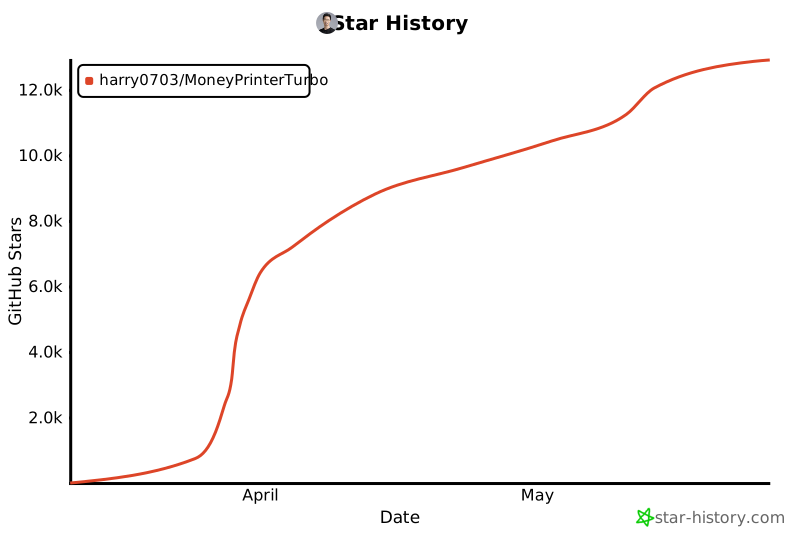
## Star History
|
||
|
||
[](https://star-history.com/#harry0703/MoneyPrinterTurbo&Date) |